1. Install and open VS Code
Install Visual Studio Code first. Codex will use it later to open and edit projects. After installation, open VS Code once and confirm that it starts normally.
Download VS Code
Download VS Code
Important: Codex Desktop, Codex CLI, and API calls must use https://api.get-apikey.com/v1 as the API Base URL, including /v1.
experimental_bearer_token in config.toml.config.tomlEnter your API key: Replace your-api-key in experimental_bearer_token = "your-api-key" with the actual key copied from the API Key page. Keep the double quotes, then save the configuration.
Settings → Config → Open config.toml.Open config.toml opens VS Code.[model_providers.get-codex] section with the one below so that old authentication settings are removed. Keep other providers, sandbox, MCP, project, and desktop settings in the file. In VS Code, press Command+S to save. You can also close the VS Code window and click Save when prompted.Enter your API key: Replace your-api-key in experimental_bearer_token = "your-api-key" with the actual key copied from the API Key page. Keep the double quotes, then save the configuration.
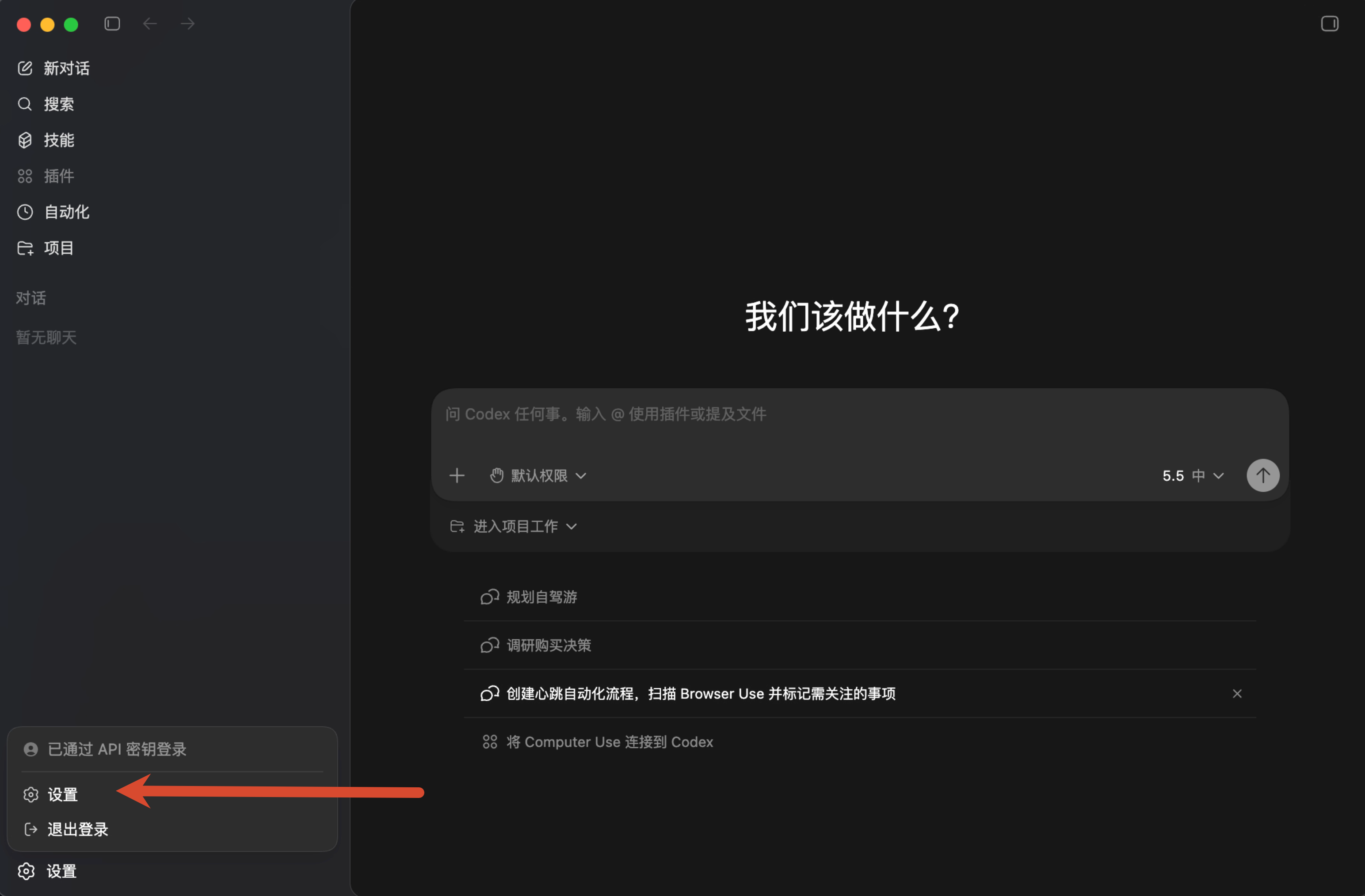
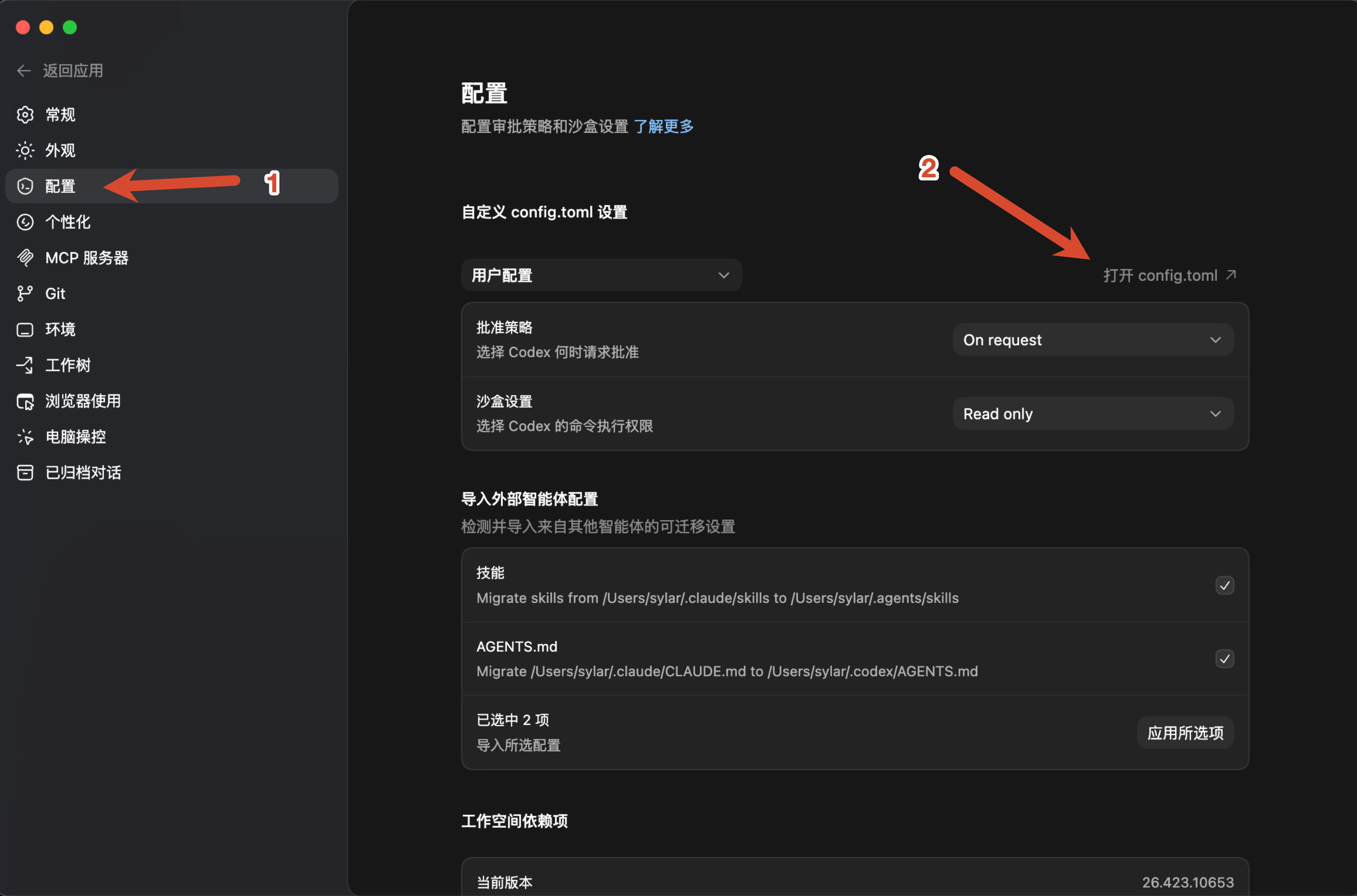
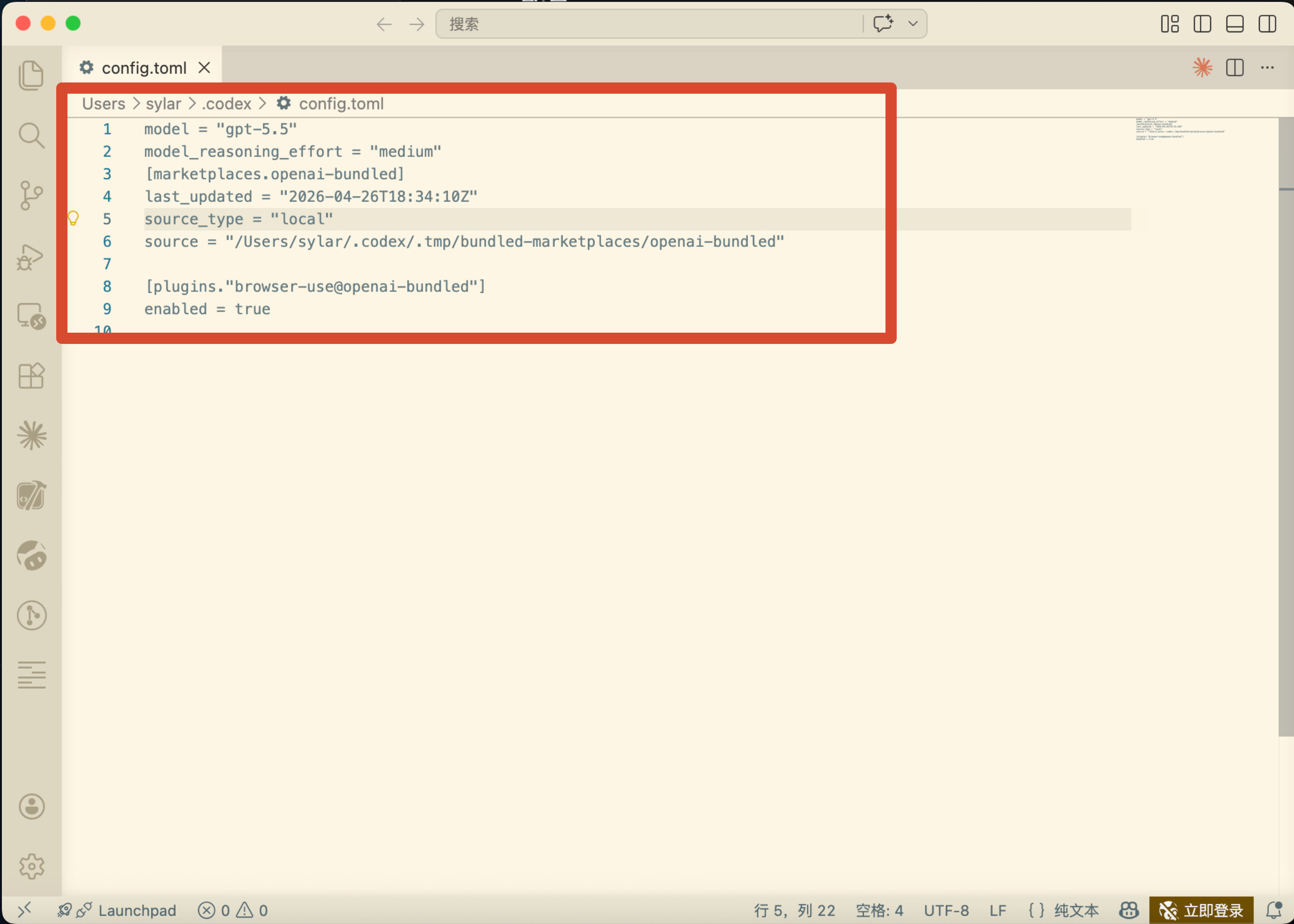
Important: You must use https://api.get-apikey.com/v1 as the API Base URL. Set base_url to this exact address, including /v1.
model = "gpt-5.5"
model_reasoning_effort = "high"
model_provider = "get-codex"

[model_providers.get-codex]
name = "Get-Codex"
base_url = "https://api.get-apikey.com/v1"
wire_api = "responses"
requires_openai_auth = true
experimental_bearer_token = "your-api-key"File → Settings..., then go to Config → Open config.toml.Open config.toml opens VS Code.[model_providers.get-codex] section with the one below so that old authentication settings are removed. Keep other providers, sandbox, MCP, project, and desktop settings in the file. In VS Code, press Ctrl+S to save. You can also close the VS Code window and click Save when prompted.Enter your API key: Replace your-api-key in experimental_bearer_token = "your-api-key" with the actual key copied from the API Key page. Keep the double quotes, then save the configuration.
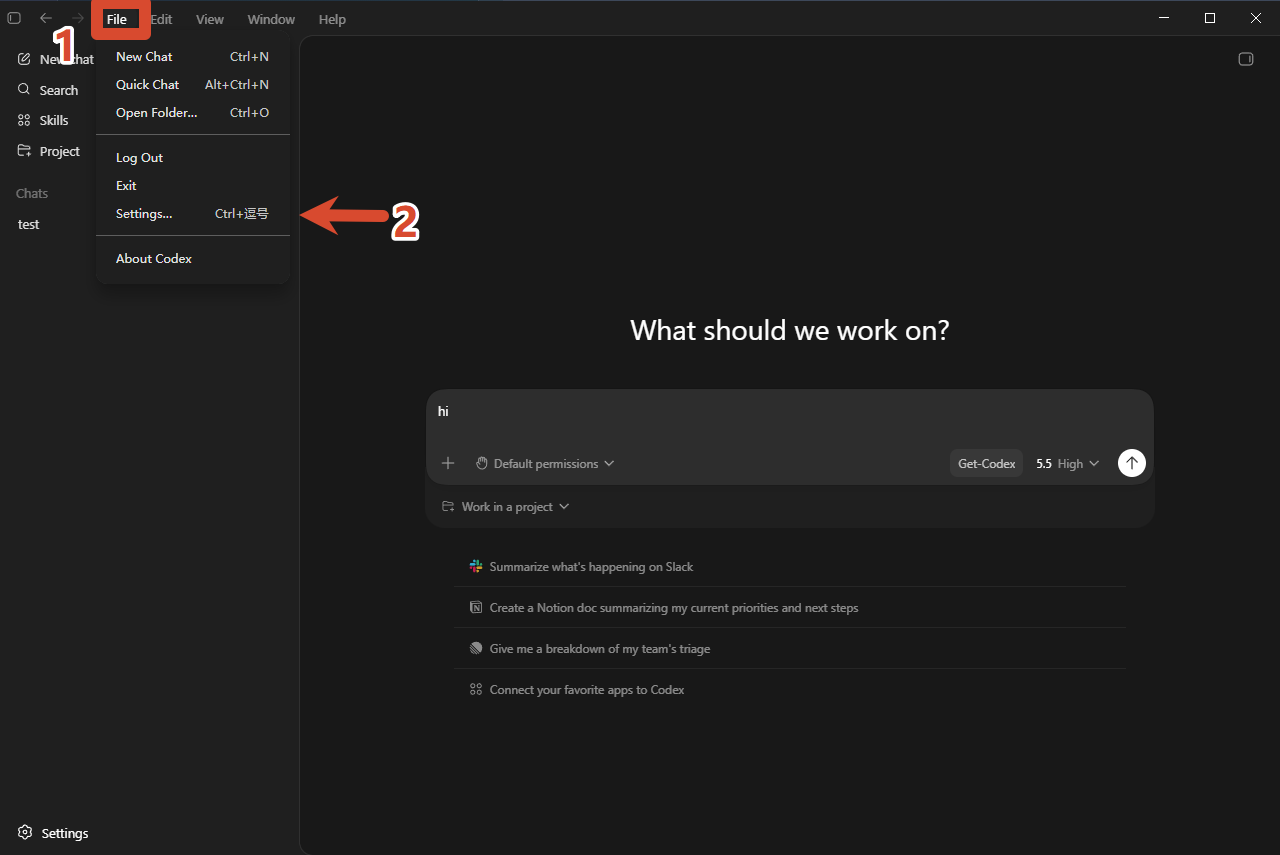
Important: You must use https://api.get-apikey.com/v1 as the API Base URL. Set base_url to this exact address, including /v1.
model = "gpt-5.5"
model_reasoning_effort = "high"
model_provider = "get-codex"

[model_providers.get-codex]
name = "Get-Codex"
base_url = "https://api.get-apikey.com/v1"
wire_api = "responses"
requires_openai_auth = true
experimental_bearer_token = "your-api-key"
If you cannot access Codex Settings yet, open or create the configuration file directly in VS Code at the default location below:
~/.codex/config.tomlC:\Users\YourUsername\.codex\config.tomlconfig.toml, fully quit and reopen Codex Desktop. Start a new conversation and send this message:hi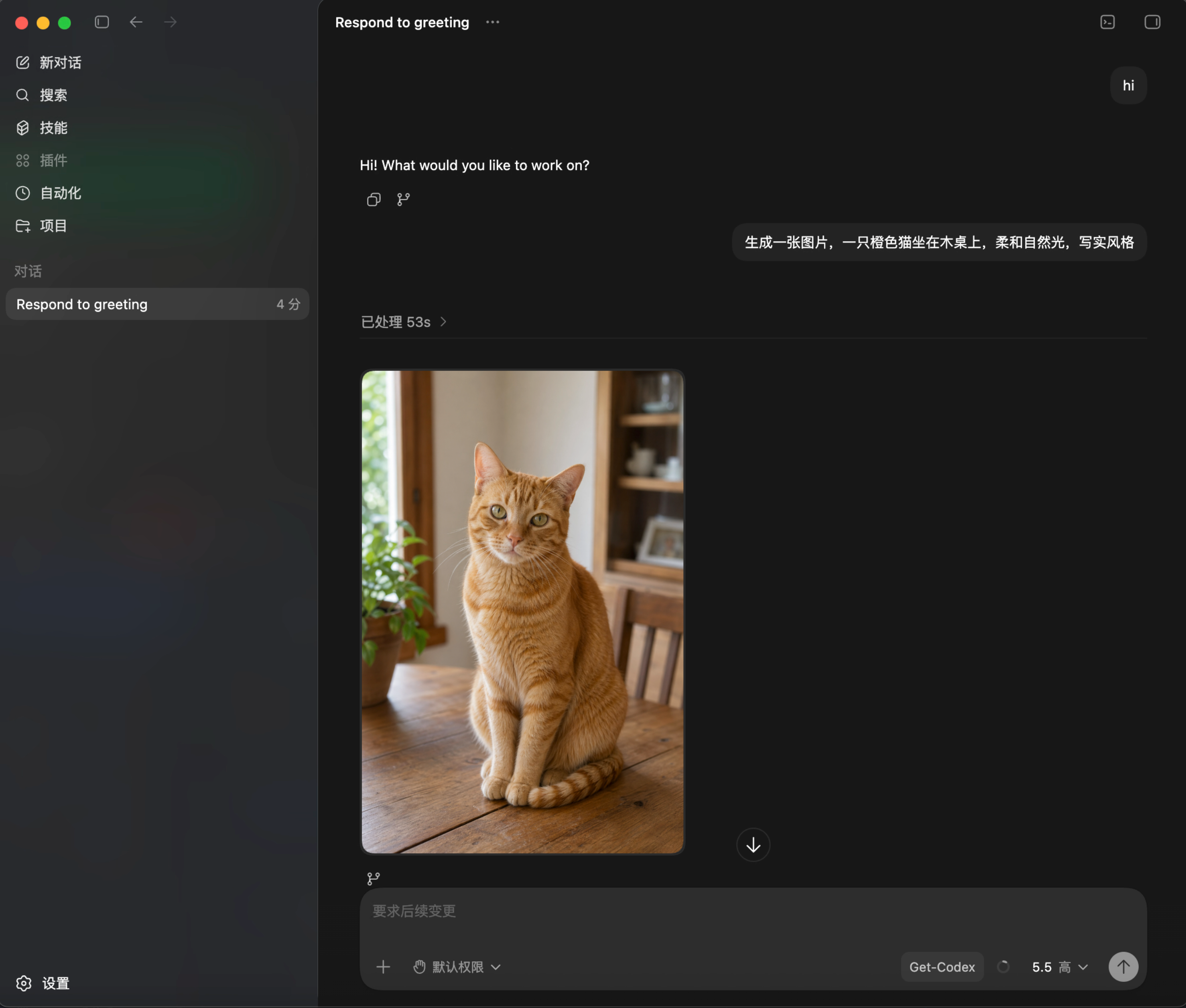
npm, so first confirm that node and npm are available:node -v
npm -vbrew install nodenode -v
npm -vnode -v
npm -vsudo apt-get update
sudo apt-get install -y nodejs npmnode -v
npm -vnode -v
npm -vwinget install OpenJS.NodeJS.LTSnode -v
npm -vnode -v
npm -vwinget install OpenJS.NodeJS.LTSnode -v
npm -vnpm i -g @openai/codexcodex --versionnpm is not available here, go back to the Node.js setup step above first.npm i -g @openai/codexcodex --versionnpm is not available here, go back to the Node.js setup step above first.npm i -g @openai/codexcodex --versionnpm is missing here, go back to the Node.js setup step above first. If codex is not found right after installation, reopen PowerShell or Windows Terminal and try again.npm i -g @openai/codexcodex --versionnpm is missing here, go back to the Node.js setup step above first. If codex is not found right after installation, reopen CMD or Windows Terminal and try again.config.toml at the location below, creating the file if needed. Update the top-level settings shown below, and replace the entire existing [model_providers.get-codex] section with the one below so that old authentication settings are removed. Keep other providers, sandbox, MCP, project, and desktop settings in the file. If you have already configured Desktop above, reuse the same file.~/.codex/config.tomlC:\Users\YourUsername\.codex\config.tomlEnter your API key: Replace your-api-key in experimental_bearer_token = "your-api-key" with the actual key copied from the API Key page. Keep the double quotes, then save the configuration.
Important: You must use https://api.get-apikey.com/v1 as the API Base URL. Set base_url to this exact address, including /v1.
model = "gpt-5.5"
model_reasoning_effort = "high"
model_provider = "get-codex"

[model_providers.get-codex]
name = "Get-Codex"
base_url = "https://api.get-apikey.com/v1"
wire_api = "responses"
requires_openai_auth = true
experimental_bearer_token = "your-api-key"codexhi. A normal response confirms that the CLI is configured.Got questions? Check here first
gpt-5.5 xHigh and gpt-image-2 models.For setup, purchase, or usage issues, contact us by email or on WeChat Work.
You can also scan the WeChat Work QR code for setup, purchase, and enterprise support.
 WeChat Work QR Code